SharePoint Connector Documentation
- Setup Instructions
- Flow 1: OAuth Based
- Flow 2: Personal Service Principal
- Flow 3: Custom OAuth
- User connector flow
- Permissions and Access
- How to Use the SharePoint Connector
- Using SharePoint Data with LLMs
- Troubleshooting and FAQ
If you have already set up a connector, skip to How to Use the SharePoint Connector.
Microsoft blocks ordinary users from consenting to the Abacus.AI app on their own. Before anyone else in your tenant can connect SharePoint, a Microsoft Entra admin must create the connector once and tick the "Consent on behalf of your organization" checkbox on Microsoft's Permissions requested screen, then click Accept.
This is not the same as the Grant admin consent button in the Entra admin center. Once the admin has ticked the checkbox, every user in that tenant can sign in and create their own connector freely — until then Microsoft stops them with "Need admin approval".
See Microsoft Entra Tenant Consent for the full walkthrough.
Connect your SharePoint to Abacus.AI
To integrate SharePoint with Abacus.AI, you need to set up the connector and provide the necessary permissions.
Setting Up the SharePoint Connector
Flow 1: OAuth Based Setup
-
Before setting up the SharePoint Connector with OAuth, ensure that you have the necessary permissions to generate an OAuth token for accessing your SharePoint site.
-
Access Connected Services Dashboard:
- Go to the Abacus.AI Connected Services Dashboard. You can click your profile in the top right and then click "Manage Connectors".
-
Add New Connector:
- Click on the "Add New Connector" option, select "SharePoint" from the list, enter your site URL and click on
tick markbeside the site URL.
- Click on the "Add New Connector" option, select "SharePoint" from the list, enter your site URL and click on
-
Select "OAuth" from the 'Authentication Type' dropdown.
-
Enable Realtime Synced Datasets (Optional):
- Toggle the "Enable Realtime Synced Datasets" option to
Yesif you want to sync datasets in real time.
- Toggle the "Enable Realtime Synced Datasets" option to
-
Admin Mode (Optional):
- Toggle the "Admin Mode" option to
Yesif you want the AbacusAI_Sharepoint_Connector Entra app itself (rather than your user account) to obtain the access token and make the SharePoint/Graph API calls. This requires an org admin to grant admin consent to the app, and switches the connector from delegated permissions to application-level permissions.
- Toggle the "Admin Mode" option to
-
Enable Multi-Site Selection (Optional):
- If you want to pull data from multiple SharePoint sites, toggle the "Pull from Multiple Sites" option to
Yes. - Enter the SharePoint domain in the "SharePoint Domain" field. The domain must end with
sharepoint.com. - Use the
+button to add multiple site names or enter them as comma-separated values in the "Sites" field.
- If you want to pull data from multiple SharePoint sites, toggle the "Pull from Multiple Sites" option to
-
Skip Sensitivity Labels (Optional):
- If your SharePoint environment uses Microsoft Purview sensitivity labels, you can exclude files with specific sensitivity labels during data ingestion.
- Enter a comma-separated list of sensitivity label names in the "Skip Sensitivity Labels" field to skip files matching those labels.
- Ensure the
SensitivityLabels.Read.Allapplication permission is granted with admin consent for this feature to work.
-
Click on
Connect Sharepointbutton to create and save the connector.
Flow 2: Personal Service Principal Setup with certificates
-
Select Authentication Type:
- Go to the Abacus.AI Connected Services Dashboard. You can click your profile in the top right and then click "Manage Connectors".
- Click on the "Add New Connector" option, select "SharePoint" from the list, and choose "Personal Service Principal" as the authentication type.
-
Enter Client ID:
- Provide the Client ID for your Personal Service Principal.
-
Optional Configurations:
- If you want to pull data from multiple SharePoint sites, toggle the "Pull from Multiple Sites" option to
Yes. - Note: The "Enable Realtime Synced Datasets" option is only available for the OAuth Based flow and is not applicable here.
- Skip Sensitivity Labels (Optional): If your SharePoint environment uses Microsoft Purview sensitivity labels, enter a comma-separated list of sensitivity label names to exclude files matching those labels during data ingestion. Ensure the
SensitivityLabels.Read.Allapplication permission is granted for this feature to work.
- If you want to pull data from multiple SharePoint sites, toggle the "Pull from Multiple Sites" option to
-
Save and Verify:
- Click "Save". A popup box will appear with a certificate. Download this certificate as it will be required for the next steps.
-
Grant Permissions in Microsoft:
- Grant the necessary permissions in Microsoft for the Personal Service Principal.
-
Upload the Certificate:
- Follow the instructions provided in the popup box to upload the certificate and complete the verification process.
-
Verify Connector Status:
- Once the permissions are granted and the certificate is uploaded, the connector should be set up and display an "ACTIVE" status.
Flow 3: Custom OAuth
-
Access Connected Services Dashboard:
- Go to the Abacus.AI Connected Services Dashboard. You can click your profile in the top right and then click "Manage Connectors".
-
Add New Connector:
- Click on the "Add New Connector" option, select "SharePoint" from the list, enter your site URL and click on
tick markbeside the site URL.
- Click on the "Add New Connector" option, select "SharePoint" from the list, enter your site URL and click on
-
Select "Custom OAuth" from the 'Authentication Type' dropdown.
-
Use your own OAuth app and grant it access to read data.
- Copy the app's Client ID and Client Secret, then enter them into the Client ID and Client Secret fields.
- Add the redirect URI
https://abacus.ai/oauth/callbackto your OAuth app so that Abacus.AI can complete the OAuth authorization flow. Note: Please refer to Microsoft documentation to create the app and add necessary scopes to app.
-
Skip Sensitivity Labels (Optional):
- If your SharePoint environment uses Microsoft Purview sensitivity labels, enter a comma-separated list of sensitivity label names to exclude files matching those labels during data ingestion.
- Ensure the
SensitivityLabels.Read.Allapplication permission andSensitivityLabel.Readdelegated permission are added to your custom OAuth app.
-
Click on
Connect Sharepointbutton to create and save the connector.
User connector flow
- Turn Config Only toggle ON:
- Go to the Abacus.AI Connected Services Dashboard. You can click your profile in the top right and then click "Manage Connectors".
- Click on the "Add New Connector" option, select "SharePoint" from the list, and turn "Config Only" toggle on.

- Select Authentication Type:
- Select "Basic (Read Only)" if you want to use the Abacus.AI app for a read only Sharepoint user connector. See Basic (Read Only) permissions.
- Select "Write Access" if you want to use the Abacus.AI app for a read and write Sharepoint user connector. This uses a separate write-capable app registration and requests read/write scopes — see Write Access permissions.
- Select "Custom OAuth" if you want to use your own app with the Sharepoint user connector. See Custom OAuth permissions.
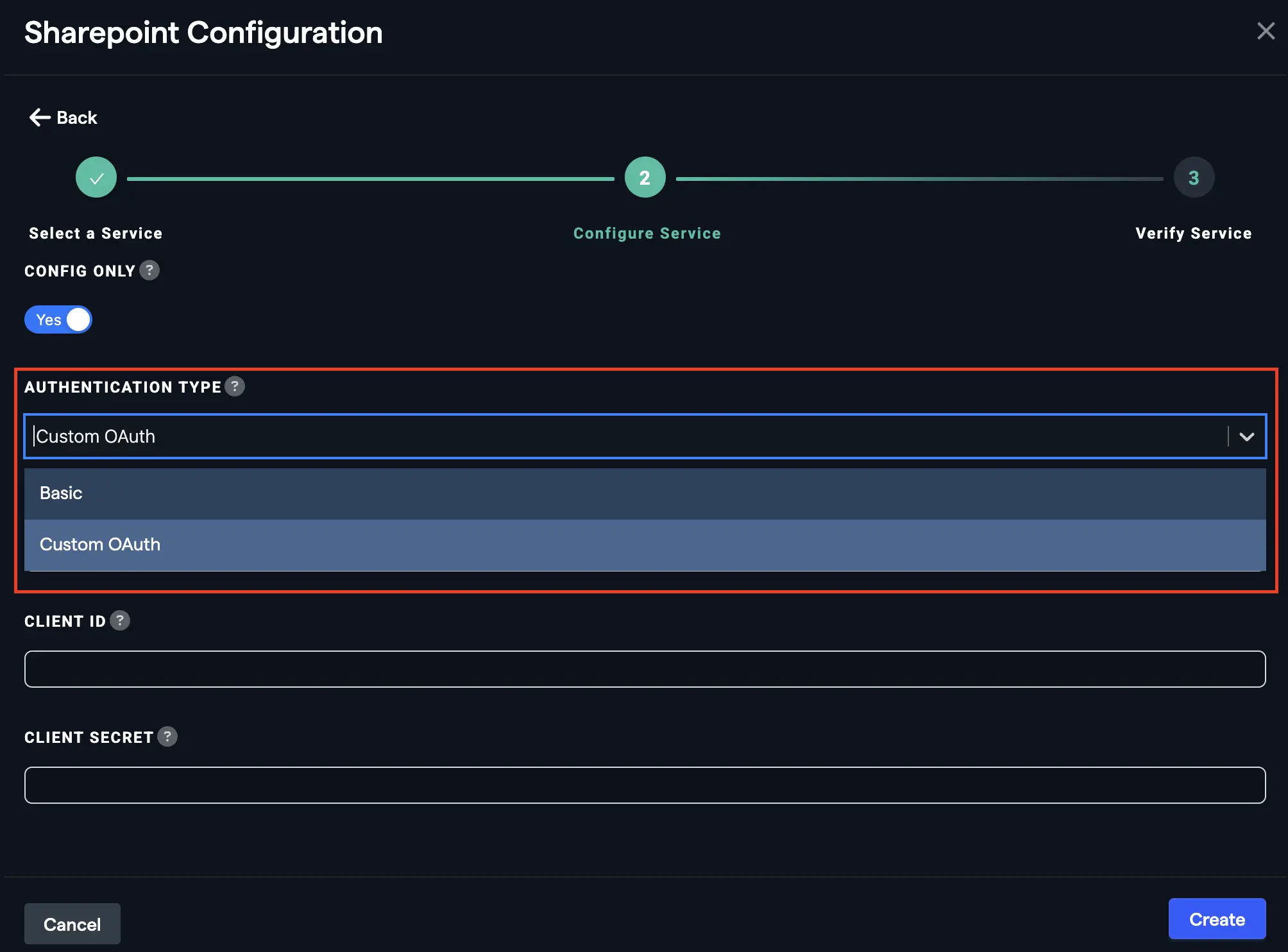
- Enter credentials:
- Enter Sharepoint site URL
- Enter client ID and secret if you have selected "Custom OAuth".
- Turn Multi User Connector toggle ON: (Optional)
- Turn this toggle ON only if you want to use the multiple Sharepoint config connectors to connect to multiple Sharepoint environments.
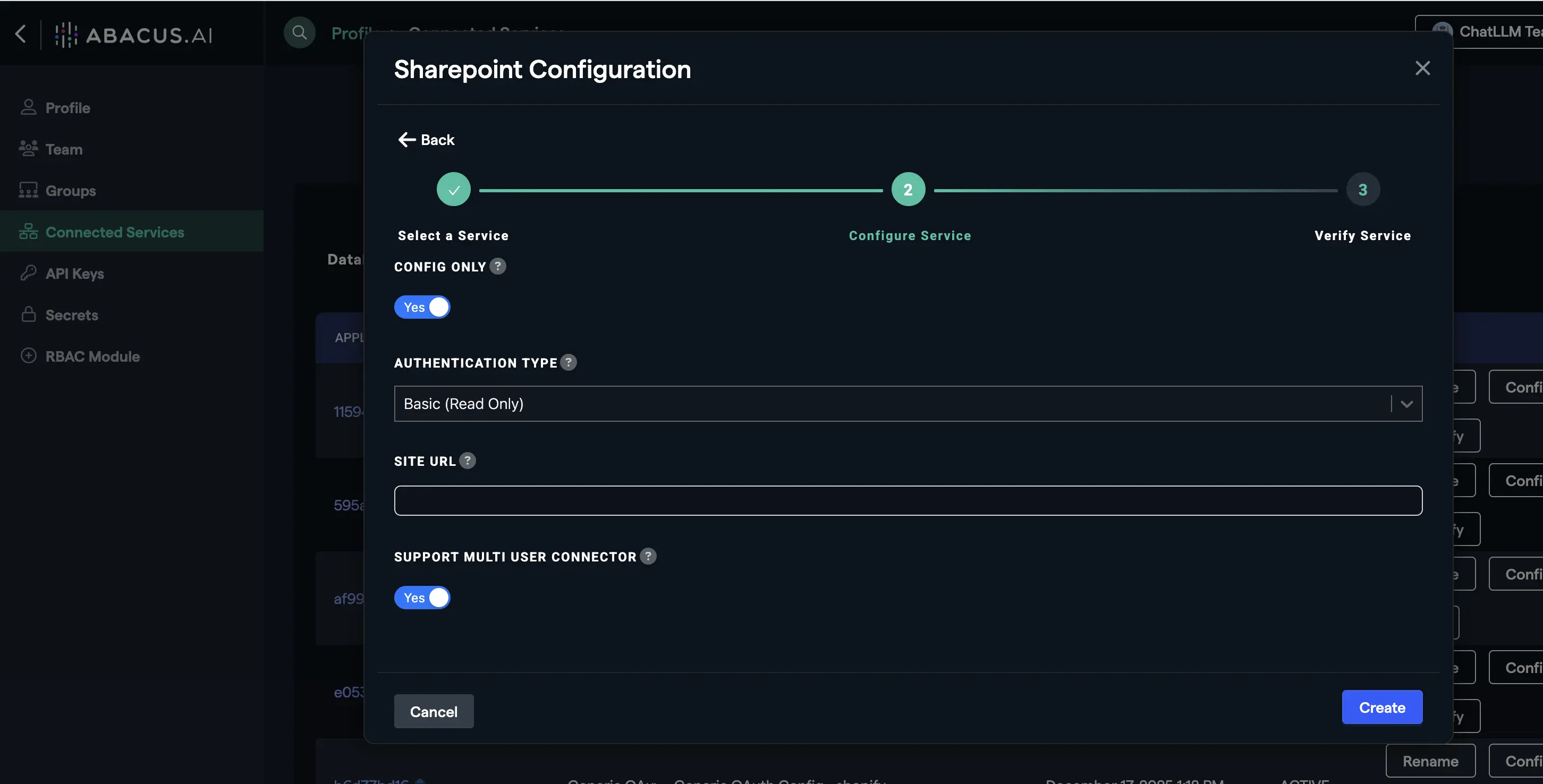
Note: See Permissions and Access → User Connector Flow for the full list of permissions requested for the user connector (all delegated permissions). The list differs between the read-only and write flows, so check the section matching the Authentication Type you selected.
Navigate to Sharepoint user connector public documentation to create a user connector.
How to Use the SharePoint Connector
Once the SharePoint connector is set up, you can fetch data to train models in Abacus.AI.
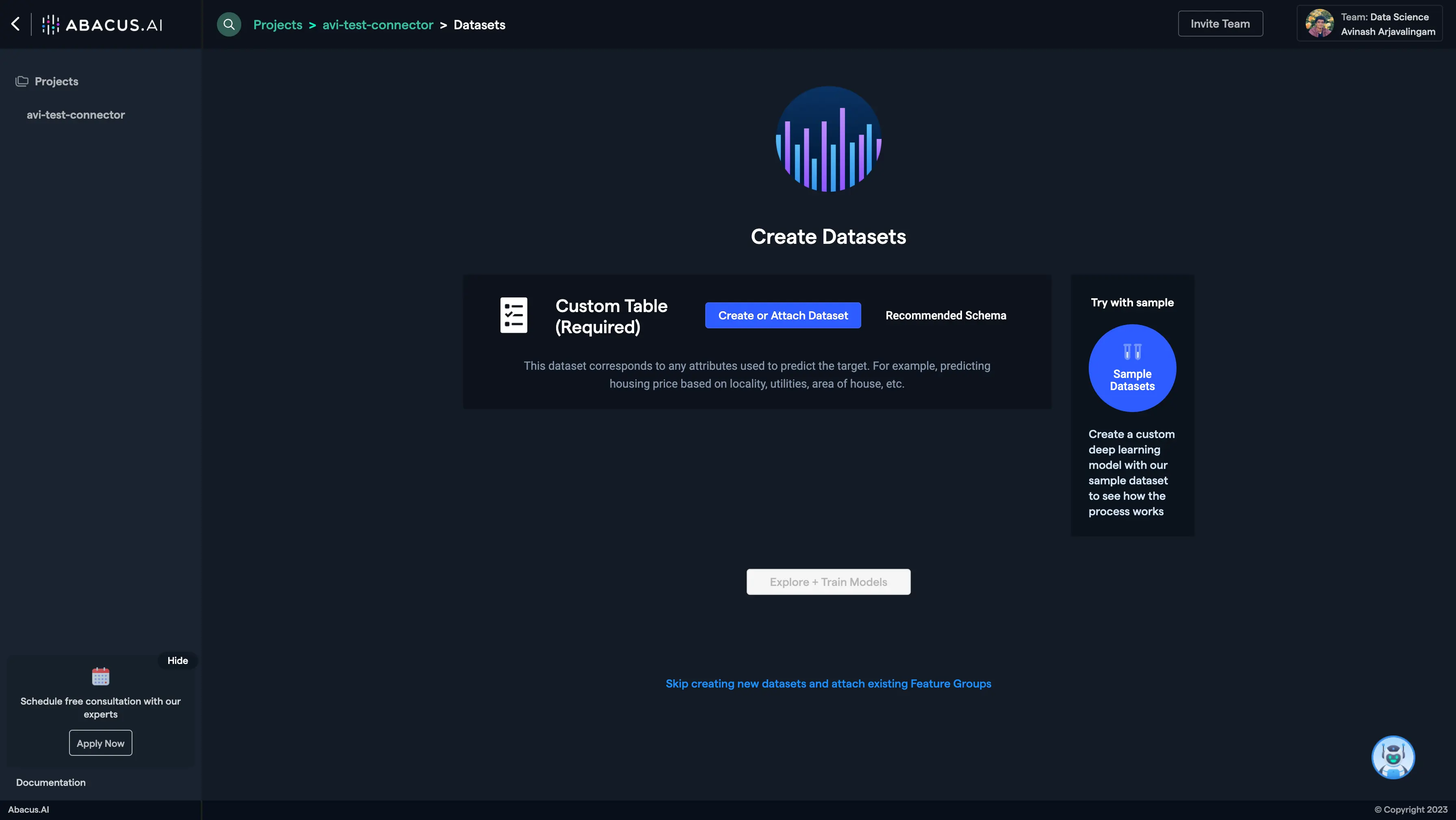
- Create a new project and select the use case, then go to the "Datasets" tab and click "Create Dataset".
- Click on "Create New".
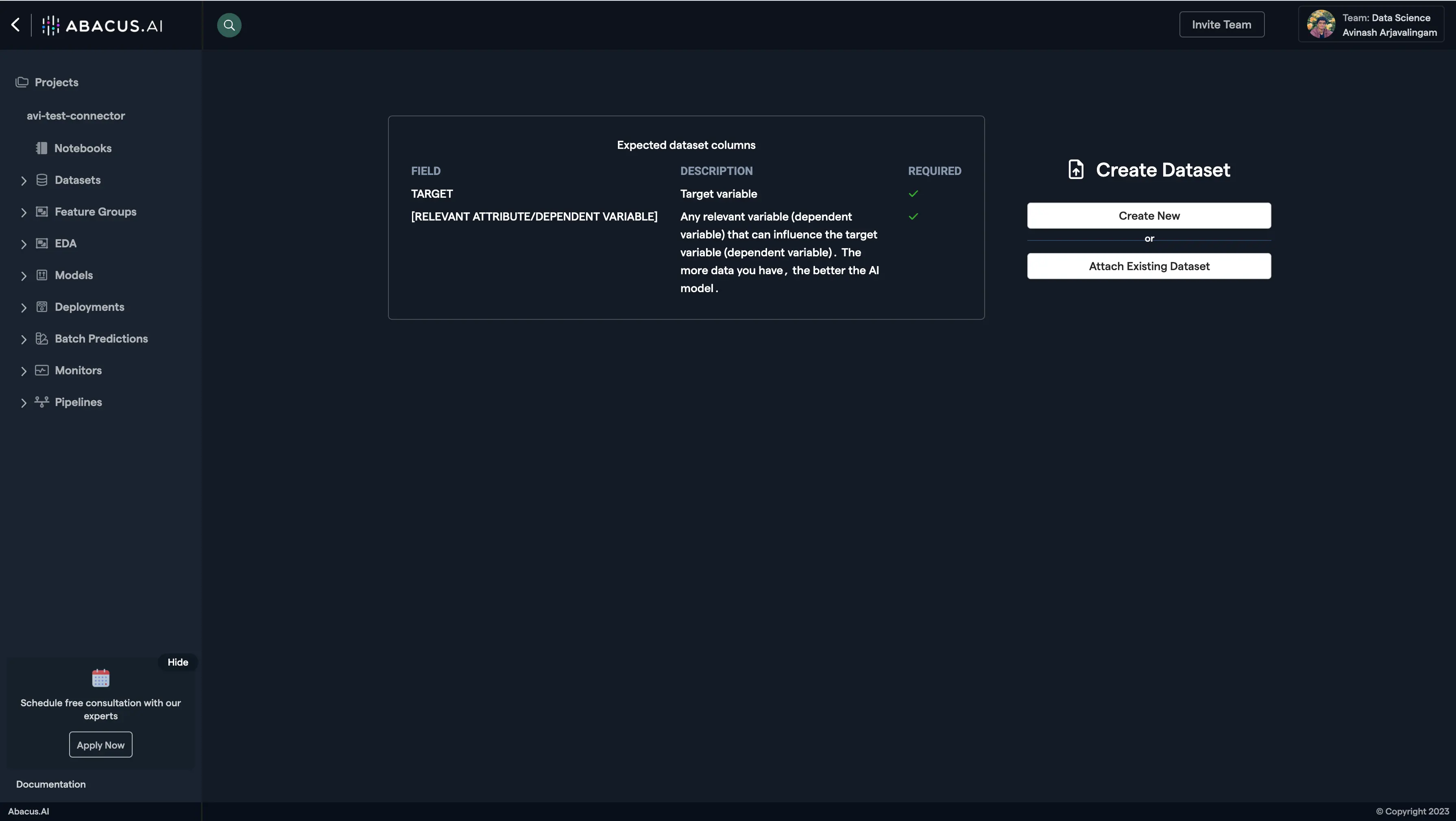
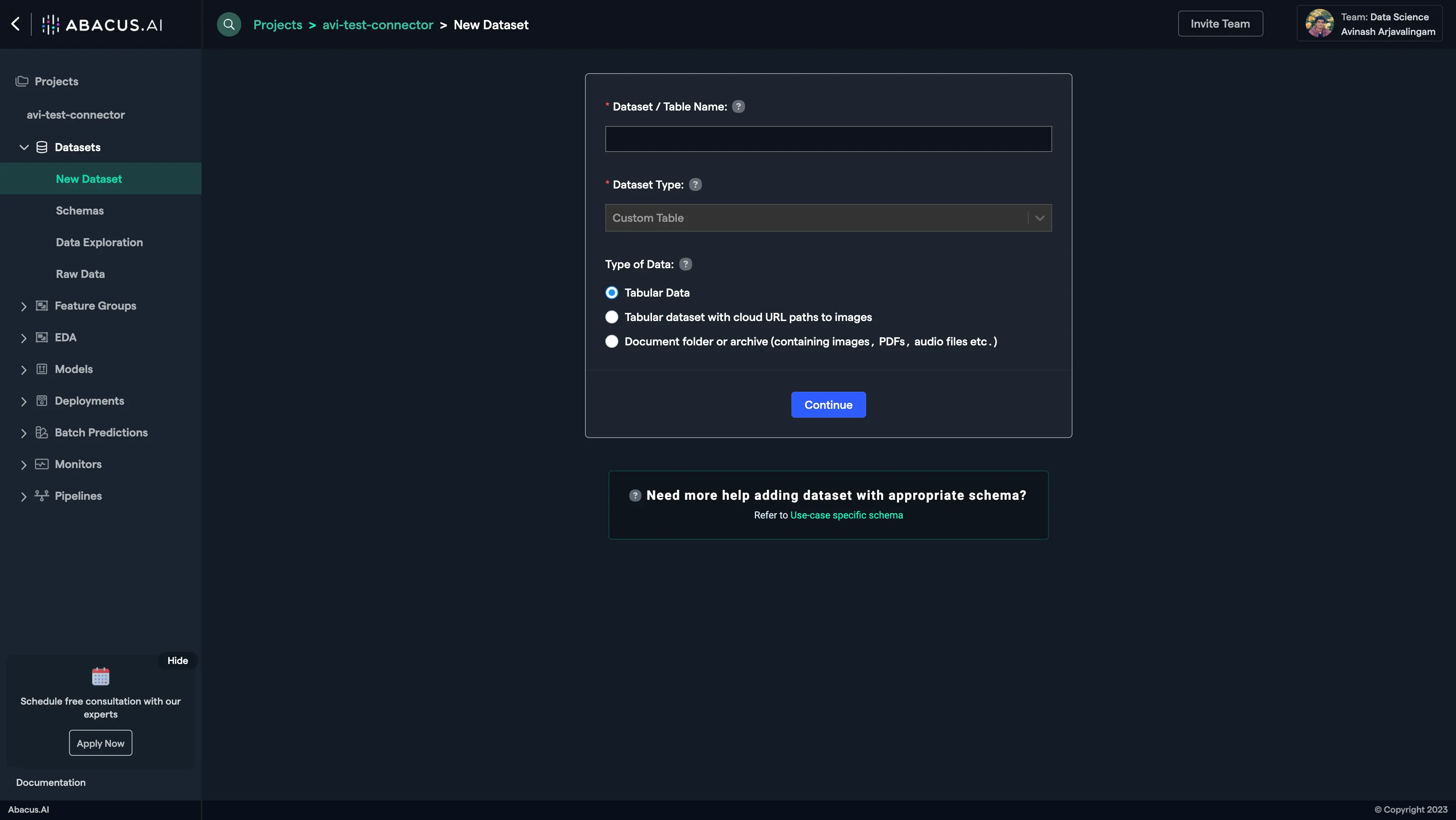
- Name the dataset, select the data type 'List of documents', and click "Continue".
-
Choose "Read from External Service" and select your SharePoint connector under "Connected Application Connectors".
-
Enter the Site URL for the SharePoint site you want to use, and specify the folder path if you have set up the connector to pull from a specific folder.
-
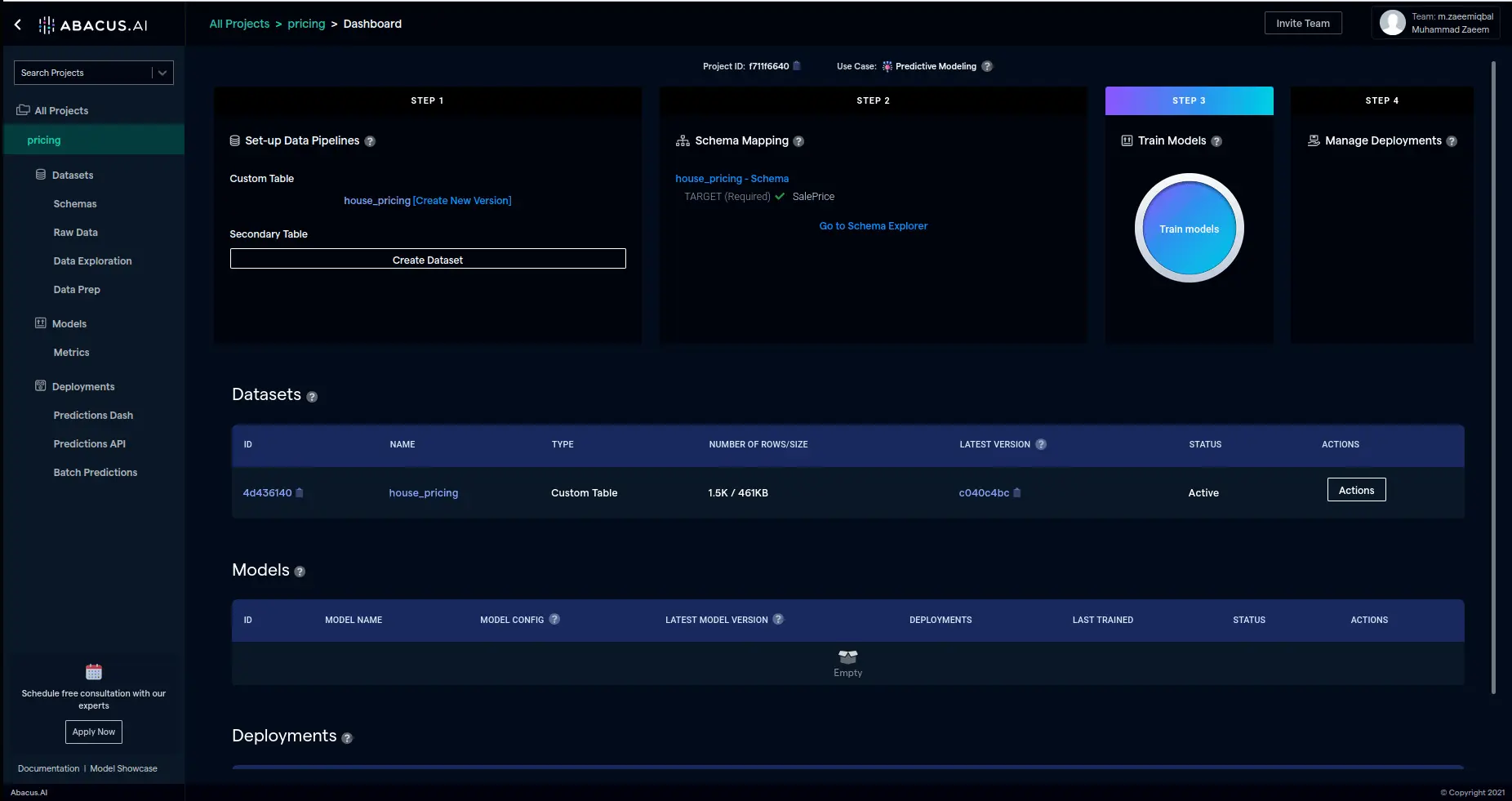
After the dataset is uploaded, configure the schema mapping and proceed to train models with the data.
Supported Data Types
- Supported Data Types: The SharePoint connector supports ingesting documents and files. Documents and files are treated as a list of documents, suitable for unstructured data use in ChatLLM projects.
Using SharePoint Data with LLMs
- ChatLLM Use Case: SharePoint documents, such as PDFs, Word files, and other unstructured data, are ideal for conversational AI use cases. These documents are ingested as a list of documents and processed into a Document Retriever for retrieval-augmented generation (RAG).
Feature Group Types
- List of Documents: Used for unstructured data, such as uploaded documents, in ChatLLM projects. These feature groups require processing into a Document Retriever for retrieval-augmented generation (RAG).
By combining both feature group types, you can handle both unstructured and structured data effectively in a single project.
Microsoft Access Scopes and Their Purpose
The following Microsoft scopes are required across connectors that use Microsoft authentication. These scopes ensure secure access, profile verification, dataset creation, and SharePoint integration.
-
General Mandatory Scopes
- User.Read – Identifies and validates the signed-in user and provides basic profile information.
- offline_access – Provides refresh tokens so authentication persists without repeated sign-ins.
Permissions and Access
The exact permissions requested depend on which authentication type and options you choose. The tables below list what is required for each combination.
Admin Mode is required whenever you want the Entra app itself — not the signed-in user — to obtain the access token and make the SharePoint/Graph API calls. This is what switches the connector from delegated permissions to application-level permissions requiring admin consent.
Flow 1: OAuth (Admin Mode off)
By default (Admin Mode toggled No), the connector uses delegated permissions consented to by the signed-in user only — no admin consent is required.
Graph API scopes (delegated)
- Sites.Read.All: Read items in all site collections
- Files.Read.All: Read all files that user can access
- offline_access: Maintain access to data you have given it access to
- SensitivityLabel.Read: Read the user's sensitivity labels (Optional: added only if using Skip Sensitivity Labels)
SharePoint scopes (delegated)
- AllSites.Read: Read items in all site collections
- MyFiles.Read: Read user files
Flow 1: OAuth with Admin Mode (Admin Consent)
Toggling Admin Mode to Yes means the AbacusAI_Sharepoint_Connector Entra app itself gets the access token and makes the API calls, using application-level permissions instead of the signed-in user's delegated permissions. An org admin must grant consent for these:
Graph API scopes (application)
- Files.Read.All: Read files in all site collections
- Sites.Read.All: Read items in all site collections
- Sites.Selected: Access selected site collections
- SensitivityLabels.Read.All: Get labels tenant scope (Optional: required only if using Skip Sensitivity Labels)
- Directory.Read.All: Read directory data (Optional: required for permission aware SharePoint connector)
- GroupMember.Read.All: Read all group memberships (Optional: required for permission aware SharePoint connector)
- User.Read.All: Read all users' full profiles (Optional: required for permission aware SharePoint connector)
- User.ReadBasic.All: Read all users' basic profiles (Optional: required for permission aware SharePoint connector)
SharePoint scopes (application)
- Sites.FullControl.All: Have full control of all site collections (Optional: required for permission aware SharePoint connector)
- Sites.Read.All: Read items in all site collections (Optional)
- Sites.Selected: Access selected site collections (Optional)
Flow 1: OAuth with Realtime Synced Datasets enabled
Realtime Synced Datasets work over the same delegated OAuth flow as above — Admin Mode is optional and does not need to be enabled, though it can also be enabled if you want the connector to use application-level permissions instead. Enabling "Enable Realtime Synced Datasets" adds the following scopes to the same delegated OAuth consent (or to the Admin Mode application permissions, if Admin Mode is also enabled):
Graph API scopes (delegated)
- Sites.Read.All: Read items in all site collections
- Files.Read.All: Read all files that user can access
- offline_access: Maintain access to data you have given it access to
- GroupMember.Read.All: Read all group memberships
- Directory.Read.All: Read directory data
SharePoint scopes (delegated)
- AllSites.Read: Read items in all site collections
- MyFiles.Read: Read user files
- AllSites.FullControl: Have full control of all site collections
Flow 2: Personal Service Principal Permissions
These are application-level permissions that you grant directly to your Personal Service Principal in Microsoft Entra (see step 5 of setup):
- Files.Read.All: Read files in all site collections
- Sites.Read.All: Read items in all site collections
- Sites.Selected: Access selected site collections
- SensitivityLabels.Read.All: Read sensitivity labels and their policy settings (Optional: required only if using Skip Sensitivity Labels)
Note: Realtime Synced Datasets are not supported for this flow.
Flow 3: Custom OAuth Permissions
Add the following scopes to your own Entra app (see necessary scopes in setup):
Delegated permissions (same as Flow 1: OAuth above)
- Sites.Read.All, Files.Read.All, offline_access, AllSites.Read, MyFiles.Read
Additional permission for Skip Sensitivity Labels (Optional)
- SensitivityLabels.Read.All (application permission)
- SensitivityLabel.Read (delegated permission)
User Connector Flow (Basic / Write / Custom Auth)
All permissions requested for the user connector flow are delegated permissions, consented to by each signed-in user. The exact set depends on the Authentication Type selected on the config connector — Basic (Read Only) and Write Access use different Abacus.AI Entra apps, so the write flow requests read/write scopes instead of the read-only ones.
Basic (Read Only)
Uses the read-only Abacus.AI Entra app. The connector can read SharePoint sites and files, but cannot create, modify or delete content.
Graph API scopes
- Directory.Read.All: Read directory data
- email: View users' email address
- Files.Read.All: Read all files that user can access
- offline_access: Maintain access to data you have given it access to
- openid: Sign users in
- profile: View users' basic profile
- SensitivityLabel.Read: Get labels user scope
- SensitivityLabels.Read.All: Get labels app scope
- Sites.Read.All: Read items in all site collections
- Sites.Selected: Access selected Sites, on behalf of the signed-in user
- User.Read: Sign in and read user profile
SharePoint scopes
- AllSites.Read: Read items in all site collections
- MyFiles.Read: Read user files
- Sites.Search.All: Run search queries as a user
- Sites.Selected: Access selected site collections
- User.Read.All: Read user profiles
Write Access
Uses a separate, write-capable Abacus.AI Entra app. The read-only scopes above are replaced by their read/write equivalents, which lets the connector create, edit, upload and delete SharePoint files and items on behalf of the signed-in user.
Graph API scopes
- email: View users' email address
- Files.ReadWrite.All: Have full access to all files user can access
- offline_access: Maintain access to data you have given it access to
- openid: Sign users in
- profile: View users' basic profile
- SensitivityLabel.Read: Get labels user scope
- SensitivityLabels.Read.All: Get labels app scope
- Sites.ReadWrite.All: Edit or delete items in all site collections
- User.Read: Sign in and read user profile
- User.Read.All: Read all users' full profiles
SharePoint scopes
- AllSites.Write: Read and write items in all site collections
- MyFiles.Write: Read and write user files
- Sites.Search.All: Run search queries as a user
- Sites.Selected: Access selected site collections
- User.Read.All: Read user profiles
Custom OAuth
Your own Entra app is used instead of the Abacus.AI app, so you must add the delegated permissions to it yourself: the Basic (Read Only) set for a read-only connector, or the Write Access set if your users need to create or modify SharePoint content. Also add the redirect URI https://abacus.ai/oauth/callback to the app.
These permissions allow the connector to pull the necessary data for analysis and model training, and — with Write Access — to write content back to SharePoint as the signed-in user.
Minimum Scopes required for Dataset creation
SharePoint scopes (delegated):
AllSites.Read- Read items in all site collectionsMyFiles.Read- Read user files
For Realtime SharePoint Dataset Permission:
- All of the above SharePoint scopes, plus
AllSites.FullControl(delegated SharePoint scope). - The following Graph scopes (delegated):
Directory.Read.All,GroupMember.Read.All.
Troubleshooting and FAQ for the SharePoint connector
Can I use multiple SharePoint connectors in Abacus.AI?
Yes, you can set up multiple SharePoint connectors in Abacus.AI, each with different configurations and permissions.
What's the right feature mapping schema that will allow documents to use the URLs of the original file location on the source page in the external chat portal?
To get the URLs to the original location of a file on the source page in the chatweb, you should set the URL as "Document source" instead of the file_path which is set as a document source by default.