OneDrive Connector Documentation
- Setup Instructions
- Flow 1: OAuth Based
- Flow 2: Personal Service Principal
- Flow 3: Custom OAuth
- Permissions and Access
- How to Use the OneDrive Connector
If you have already set up a connector, skip to How to Use the OneDrive Connector.
Microsoft blocks ordinary users from consenting to the Abacus.AI app on their own. Before anyone else in your tenant can connect OneDrive, a Microsoft Entra admin must create the connector once and tick the "Consent on behalf of your organization" checkbox on Microsoft's Permissions requested screen, then click Accept.
This is not the same as the Grant admin consent button in the Entra admin center. Once the admin has ticked the checkbox, every user in that tenant can sign in and create their own connector freely — until then Microsoft stops them with "Need admin approval".
See Microsoft Entra Tenant Consent for the full walkthrough.
Connect your OneDrive to Abacus.AI
To integrate OneDrive with Abacus.AI, you need to set up the connector and provide the necessary permissions.
Setting Up the OneDrive Connector
- In the Abacus.AI interface, click on your profile picture in the top right corner.

- Select "Manage Connectors" from the dropdown menu.
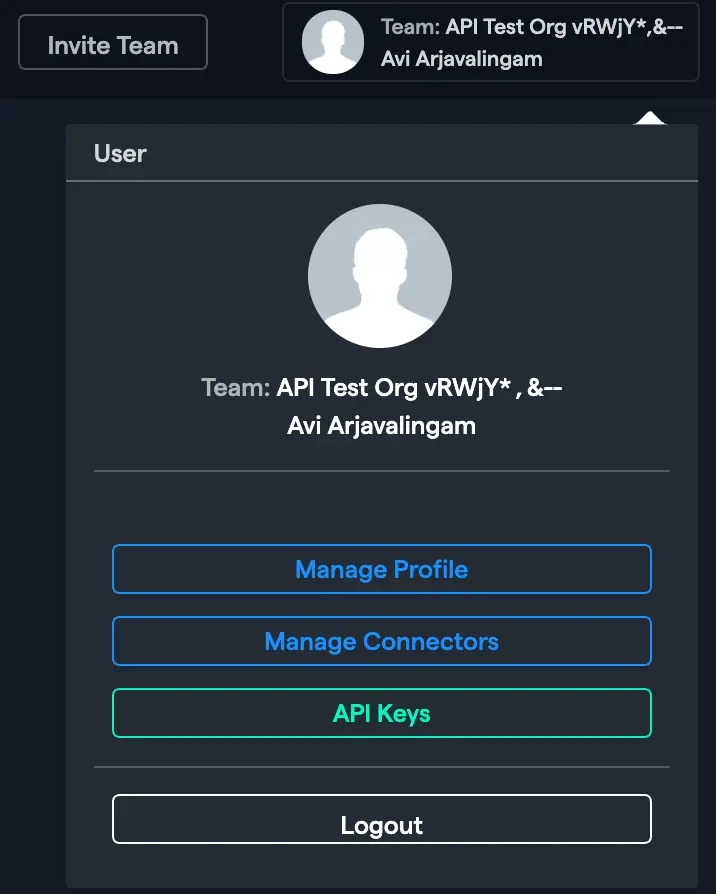
- Click on "Add New Connector", choose "OneDrive" from the list.
Flow 1: OAuth Based Setup
-
Select "OAuth" from the 'Authentication Type' dropdown (this is the default).
-
Skip Sensitivity Labels (Optional):
- If your OneDrive environment uses Microsoft Purview sensitivity labels, you can exclude files with specific sensitivity labels during data ingestion.
- Enter a comma-separated list of sensitivity label names in the "Skip Sensitivity Labels" field to skip files matching those labels.
- Ensure the
SensitivityLabels.Read.Allapplication permission is granted with admin consent for this feature to work.
-
Click
Connect OneDrive.
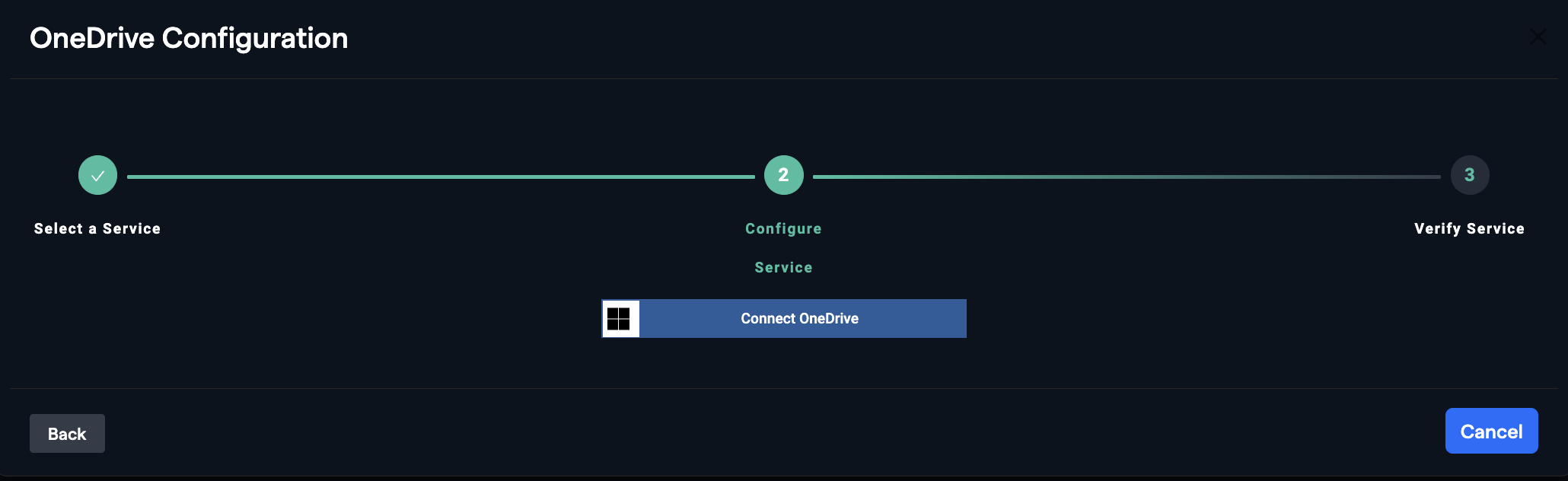
- Log in through your Microsoft account (if not logged in already) and click
Acceptto grant permission to read your OneDrive files.

Flow 2: Personal Service Principal Setup with Certificates
-
Select Authentication Type:
- Go to the Abacus.AI Connected Services Dashboard. You can click your profile in the top right and then click "Manage Connectors".
- Click on the "Add New Connector" option, select "OneDrive" from the list, and choose "Personal Service Principal" as the authentication type.
-
Enter Client ID:
- Provide the Client ID (Application ID) of your registered Azure AD app.
-
Enter Tenant ID:
- Provide the Tenant ID (Directory ID) of your Azure AD tenant.
-
Enter User ID or Email:
- Provide the User Principal Name (e.g.,
user@domain.com) or Object ID of the OneDrive user whose files you want to access.
- Provide the User Principal Name (e.g.,
-
Skip Sensitivity Labels (Optional):
- If your OneDrive environment uses Microsoft Purview sensitivity labels, enter a comma-separated list of sensitivity label names to exclude files matching those labels during data ingestion. Ensure the
SensitivityLabels.Read.Allapplication permission is granted for this feature to work.
- If your OneDrive environment uses Microsoft Purview sensitivity labels, enter a comma-separated list of sensitivity label names to exclude files matching those labels during data ingestion. Ensure the
-
Save and Download Certificate:
- Click "Save". A popup box will appear with a certificate. Download this certificate as it will be required for the next steps.
-
Grant Permissions in Microsoft:
- Grant the necessary application-level permissions in Microsoft for the Personal Service Principal.
-
Upload the Certificate:
- Go to the Azure Portal → App registrations → Select your app → Certificates & secrets → Certificates tab.
- Upload the certificate downloaded in step 6.
-
Verify Connector Status:
- Once the permissions are granted and the certificate is uploaded, the connector should be set up and display an "ACTIVE" status.
- The Personal Service Principal flow uses certificate-based authentication instead of OAuth tokens. No user login is required after the initial setup.
- The
sharedWithMeendpoint is not available with service principal (app-only) tokens. Only files owned by or directly accessible to the specified user will be listed.
Flow 3: Custom OAuth
-
Select "Custom OAuth" from the 'Authentication Type' dropdown.
-
Provide the credentials from your own Azure AD app registration:
- Client ID: The Application (client) ID of your Azure AD app.
- Client Secret: A client secret generated for your Azure AD app.
- Tenant ID (optional): The Directory (tenant) ID of your Azure AD tenant. Required for single-tenant apps where the
commonendpoint is not supported. If left blank, the multi-tenantcommonendpoint is used by default. - Add the redirect URI
https://abacus.ai/oauth/callbackto your OAuth app so that Abacus.AI can complete the OAuth authorization flow. - Note: Please refer to the Microsoft documentation to create the app and add the necessary scopes to it.
-
Skip Sensitivity Labels (Optional):
- If your OneDrive environment uses Microsoft Purview sensitivity labels, enter a comma-separated list of sensitivity label names to exclude files matching those labels during data ingestion.
- Ensure the
SensitivityLabels.Read.Allapplication permission andSensitivityLabel.Readdelegated permission are added to your custom OAuth app.
-
Click
Connect OneDrive.
Microsoft Access Scopes and Their Purpose
The following Microsoft scopes are required across connectors that use Microsoft authentication. These scopes ensure secure access, profile verification, dataset creation, and OneDrive integration.
-
General Mandatory Scopes
- User.Read – Identifies and validates the signed-in user and provides basic profile information.
- offline_access – Provides refresh tokens so authentication persists without repeated sign-ins.
-
Minimum Scope required for Dataset creation.
- Files.Read.All
Permissions and Access
Application-Level Permissions for Service Principal
When using the Personal Service Principal flow, the following application-level (app-only) permissions must be granted to your Azure AD app registration. These permissions require admin consent:
| Permission | Description | Required |
|---|---|---|
| Files.Read.All | Read all files in all site collections | Yes |
| User.Read.All | Read all users' full profiles (needed to access user drives via /users/{id} endpoint) | Yes |
| SensitivityLabels.Read.All | Read sensitivity labels and their policy settings | Optional (required for sensitivity label filtering) |
To grant these permissions:
- Go to the Azure Portal → App registrations → Select your app → API permissions.
- Click Add a permission → Microsoft Graph → Application permissions.
- Search for and add each permission listed above.
- Click Grant admin consent to activate the permissions.
Application-Level Permissions (OAuth Flow)
When setting up the connector with OAuth, the following application-level permissions are requested: (Please grant admin consent to the application to grant application-level permissions)
- Files.Read.All: Read files in all site collections
- SensitivityLabels.Read.All: Read sensitivity labels and their policy settings
Delegated Permissions
The following delegated permissions are also requested for OAuth and Custom OAuth flows:
- Files.Read: Read user files
- Files.Read.All: Read all files that user can access
- Files.ReadWrite.All: Have full access to all files user can access
- offline_access: Maintain access to data you have given it access to
- openid: Sign users in
- profile: View users' basic profile
- SensitivityLabel.Read: Read the user's sensitivity labels
- User.Read: Sign in and read user profile
These permissions allow the connector to pull necessary data.
How to Use the OneDrive Connector
Once the OneDrive connector is set up, you can fetch documents to train models in Abacus.AI.
- Create a new project and select the use case, then go to the "Datasets" tab and click "Create Dataset".
- Name the dataset, choose "Type of Data: Document folder or archive (containing images, PDFs, audio files etc.)", then click "Continue".
- Choose "Read from External Service" and select your OneDrive connector under "Application Connectors".
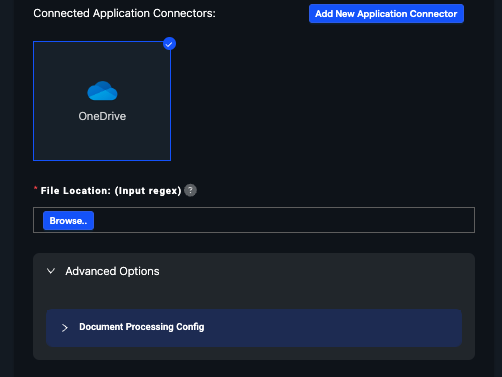
- Click on "Browse" for the file location after selecting the OneDrive connector tile. This will open the application browser for the files of the user whose OneDrive account was used to set up the connector has access to.
- You can select multiple documents or folders containing documents. Note that:
- The documents and folders must be at the same level. If you move into a nested/subfolder, the documents you selected at the higher level will not be chosen.
- You can choose folders that contain documents, and those documents will be read in.
- After selecting the file(s), click on "Select" and then "Add Dataset" (unless you want to perform Document Processing Config advanced options).
- Once the dataset is uploaded, configure the schema mapping and train models with the data.