MySQL Connector
The MySQL connector allows you to connect to MySQL databases from the Abacus.AI platform. MySQL is one of the world's most popular open-source relational database management systems, known for its reliability, ease of use, and performance. To connect to a MySQL database using the Abacus.AI platform, you need to provide the following configuration details:
Configuration Details
When setting up the MySQL connector, you will need to provide the following information:
- Database Server URL/IP: The hostname or IP address of the MySQL database server.
- Database Name: The name of the specific MySQL database you want to connect to.
- Database Port: The port number on which the MySQL database is running (default is typically
3306). - Database Username: The username assigned to access the MySQL database.
- Database Password: The password associated with the username for database access.
Steps to Connect to MySQL
-
Gather Required Information: Obtain the following details from your MySQL database administrator:
- The database server URL or IP address.
- The database port (default is
3306). - The database name you want to connect to.
- The username and password for authentication.
-
Whitelist Abacus.AI IPs: Ensure that the Abacus.AI IP addresses are whitelisted in your MySQL database's firewall or security settings. Contact Abacus.AI support for the most up-to-date IP addresses.
-
Set Up the Connector:
- Navigate to the Abacus.AI Connected Services Dashboard.
- Click on the Add New Connector button at the top right corner of the page.
- Select the MySQL connector from the list of available connectors.
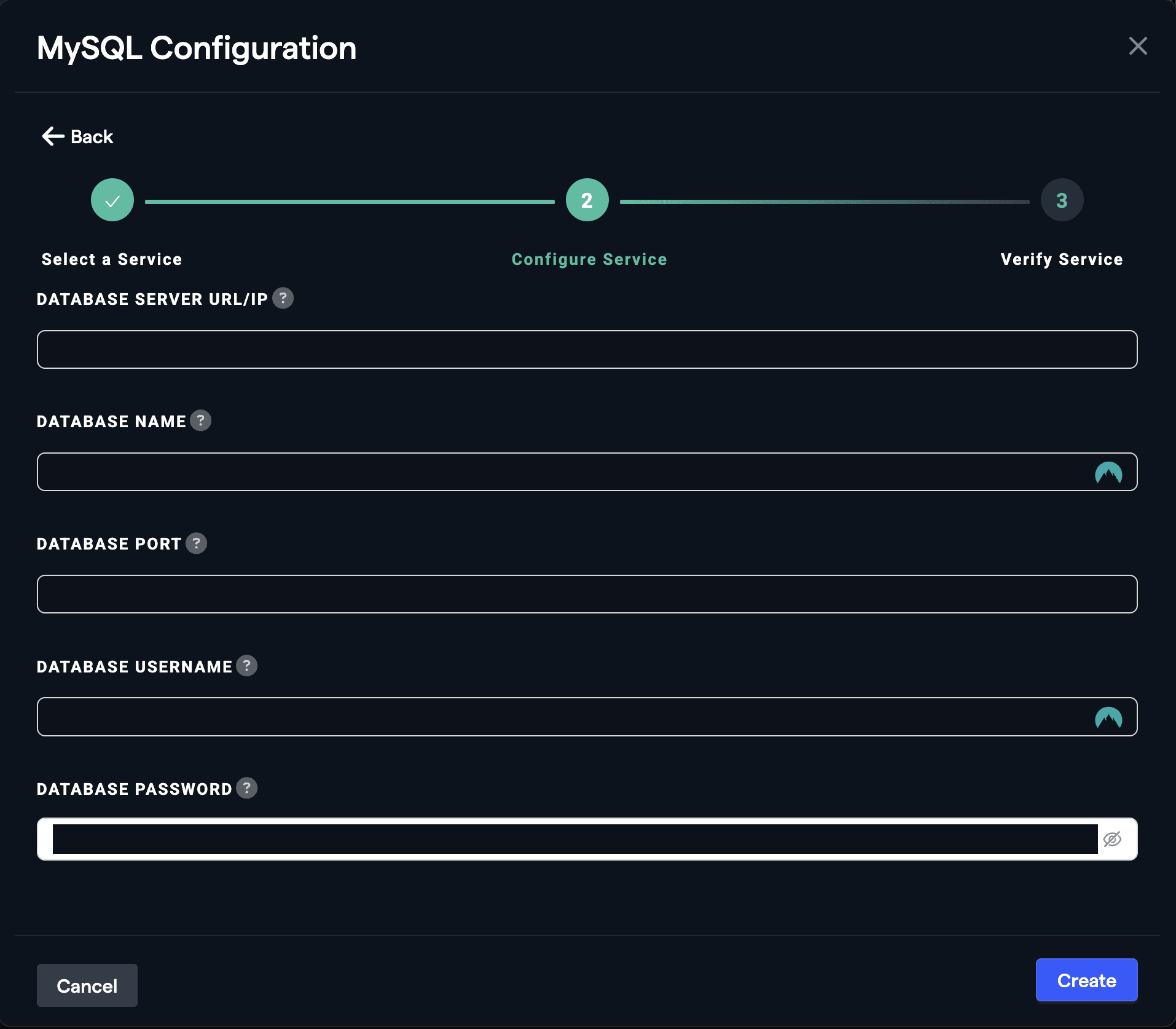
- Fill in the required configuration fields:
- Database Server URL/IP: Enter the hostname or IP address of the MySQL database server.
- Database Name: Enter the name of the database you want to connect to.
- Database Port: Enter the port number (default is
3306). - Database Username: Enter the username for database access.
- Database Password: Enter the password for the username.
- Save and Verify:
- Click the Save button to save the configuration.
- Click the Verify button to test the connection. If there are any errors, follow the error message to troubleshoot the configuration.
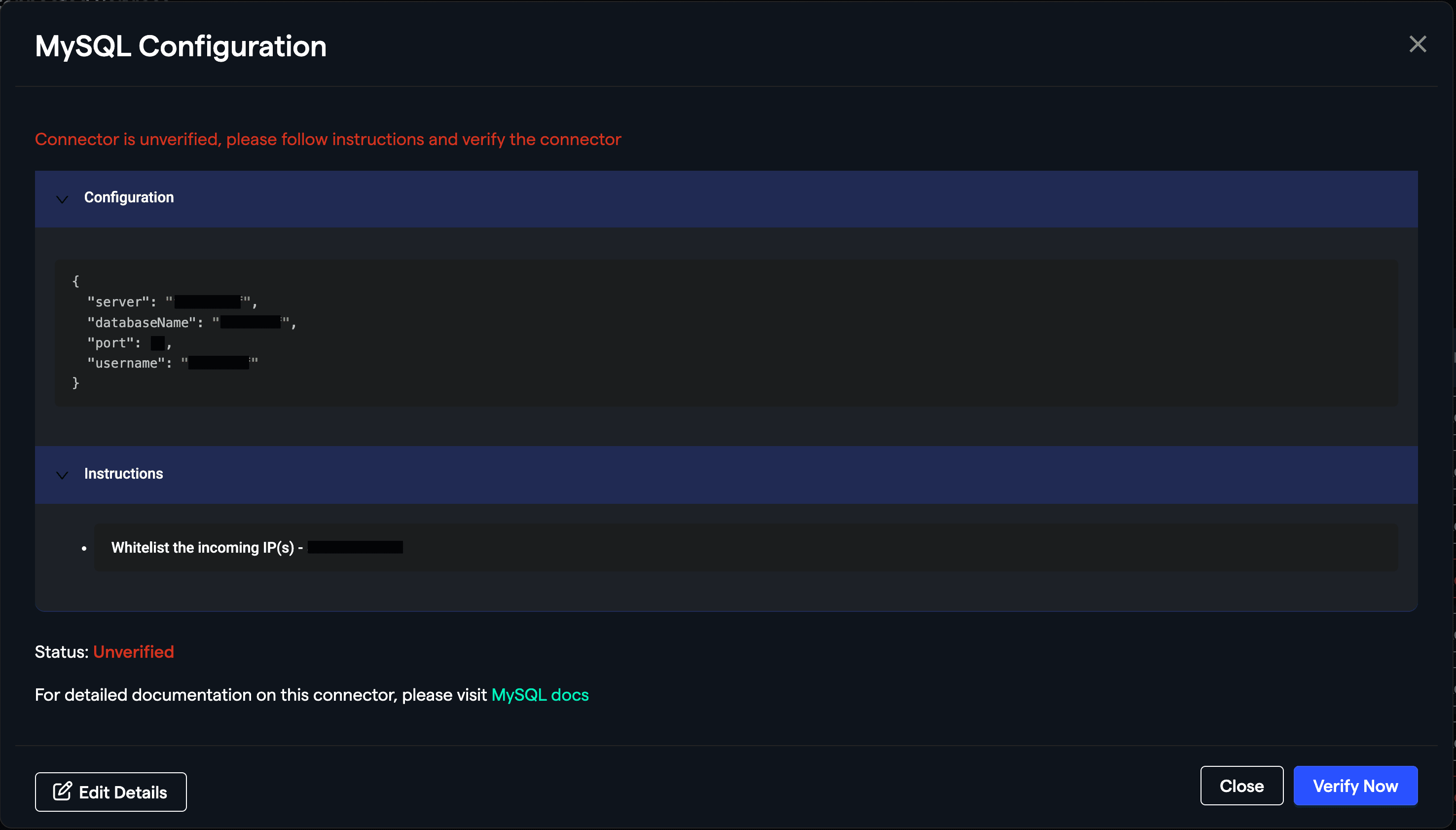
- If your database server has firewell or security settings blocking incoming requests by default, and needs configuration to allow incoming requests, the verification will fail at first.
- You'll see an instruction saying
Whitelist the incoming IP(s) - xxx.xxx.xxx.xxx, these are the IPs from where Abacus.AI connects to the database. Add these IPs to the database server's allowlist. - Click the Verify button to test the connection.
- Manage Your Connector:
- Once verified, you can rename, edit, or delete the MySQL connector from the Connected Services Dashboard.
Additional MySQL Configuration Notes
MySQL User Privileges
Ensure that the MySQL user you're connecting with has the appropriate privileges to access the database and perform the necessary operations. At minimum, the user should have:
SELECTprivileges to read data
Troubleshooting Common Connection Issues
- Connection Refused: Verify that MySQL is running and listening on the specified port.
- Access Denied: Check username/password credentials and ensure the user has access from the connecting IP address.
- Unknown Database: Verify the database name exists and is spelled correctly.