Oracle Connector
The Oracle connector is now a standalone connector. Oracle databases have a unique approach to database organization compared to other systems like MySQL or SQL Server. In Oracle, what is often referred to as a "database" in other systems is more akin to a "schema" in Oracle. To connect to an Oracle database schema using the Abacus.AI platform, you need to provide the following configuration details:
Authentication Mechanisms
When setting up the Oracle connector, the first field you choose is the Authentication Mechanism. The rest of the form changes based on this selection:
- USERNAME_PASSWORD: The standard username/password connection to a self-managed Oracle database, using a host/IP, service name, and port. This is the default and is documented below.
- ORACLE_MTLS: A Mutual TLS (mTLS) connection that authenticates using a downloaded credentials wallet. This is the option used to connect to an Oracle Autonomous Data Warehouse (ADW) instance. See the dedicated Oracle Autonomous Data Warehouse (ADW) guide for the full walkthrough.
Understanding Oracle Naming
In Oracle, the Service Name is used to connect to a database instance. It is typically composed of:
Service Name = DB_NAME + DB_DOMAIN
For example, if DB_NAME is orcl and DB_DOMAIN is example.com, the service name would be orcl.example.com.
Configuration Details (USERNAME_PASSWORD)
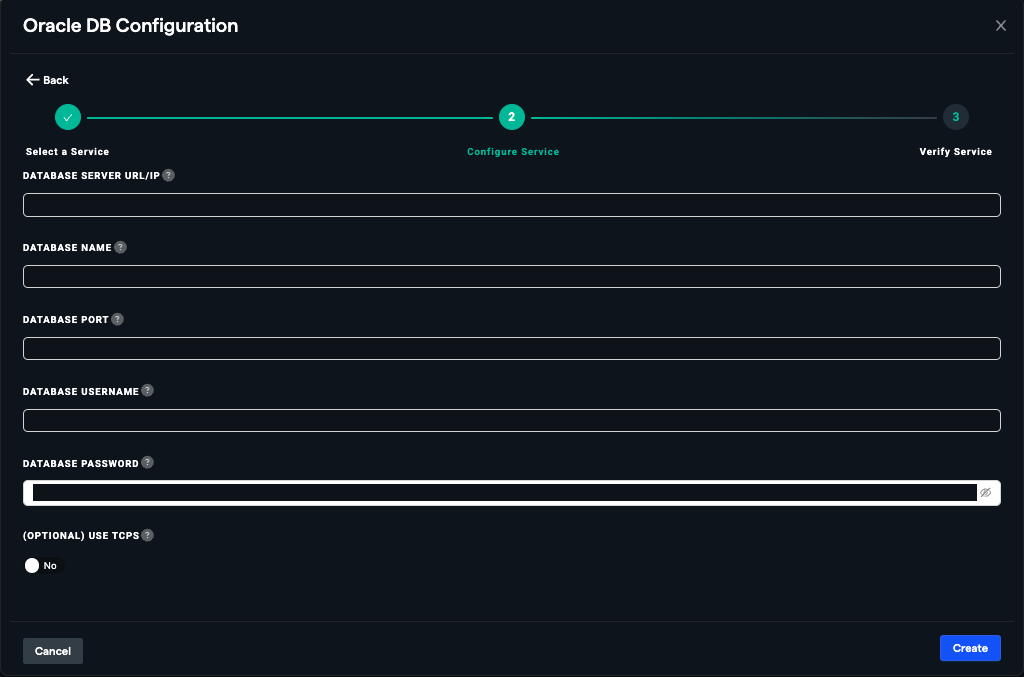
When connecting with the USERNAME_PASSWORD authentication mechanism, you will need to provide the following information:
- Database Server URL/IP: The hostname or IP address of the Oracle database server.
- Database Name: The Oracle service name followed by a dot and the schema name you want to connect to, in the format
service_name.schema_name. For example:orcl.example.com.HR(whereorcl.example.comis the service name andHRis the schema). - Database Port: The port number on which the Oracle database is running (default is typically
1521). - Database Username: The username assigned to access the Oracle database.
- Database Password: The password associated with the username for database access.
- Use TCPS (Optional): A toggle to indicate whether the Oracle database uses the SSL/TLS protocol for secure connections. By default, this is set to "No". If your database requires TCPS, toggle this option to "Yes".
Steps to Connect to Oracle
-
Gather Required Information: Obtain the following details from your Oracle database administrator:
- The database server URL or IP address.
- The database port (default is
1521). - The Oracle service name (
DB_NAME+DB_DOMAIN, e.g.,orcl.example.com). - The schema name you want to access.
- The username and password for authentication.
- Whether the database requires TCPS (SSL/TLS) for secure connections.
-
Whitelist Abacus.AI IPs: Ensure that the Abacus.AI IP addresses are whitelisted in your Oracle database's firewall or security settings. Contact Abacus.AI support for the most up-to-date IP addresses.
-
Set Up the Connector:
- Navigate to the Abacus.AI Connected Services Dashboard.
- Click on the Add New Connector button at the top right corner of the page.
- Select the Oracle connector from the list of available connectors.
- For Authentication Mechanism, select USERNAME_PASSWORD. (To connect an Oracle Autonomous Data Warehouse instance instead, select ORACLE_MTLS and follow the Oracle Autonomous Data Warehouse (ADW) guide.)
- Fill in the required configuration fields:
- Database Server URL/IP: Enter the hostname or IP address of the Oracle database server.
- Database Name: Enter the service name followed by a dot and the schema name (e.g.,
orcl.example.com.HR). - Database Port: Enter the port number (default is
1521). - Database Username: Enter the username for database access.
- Database Password: Enter the password for the username.
- Use TCPS: Toggle this option to "Yes" if your database requires SSL/TLS for secure connections. Otherwise, leave it as "No".
-
Save and Verify:
- Click the Save button to save the configuration.
- Click the Verify button to test the connection. If there are any errors, follow the error message to troubleshoot the configuration.
-
Manage Your Connector:
- Once verified, you can rename, edit, or delete the Oracle connector from the Connected Services Dashboard.