Microsoft Fabric User Connector Guide
The Microsoft Fabric user connector lets a Custom Chatbot query a Microsoft Fabric Warehouse, or the SQL analytics endpoint of a Lakehouse, under each end user's own Microsoft Entra ID identity. Each user sees only the data their Fabric permissions allow: workspace role, item permissions, T-SQL GRANT/DENY, and row-level and column-level security defined in the Warehouse.
Microsoft Fabric is a database user connector: it is used through a Custom Chatbot and is not a direct chat tool for RouteLLM.
Microsoft blocks ordinary users from consenting to the Abacus.AI app on their own. Before anyone else in your tenant can connect to Microsoft Fabric, a Microsoft Entra admin must create the connector once and tick the "Consent on behalf of your organization" checkbox on Microsoft's Permissions requested screen, then click Accept.
This is not the same as the Grant admin consent button in the Entra admin center. Once the admin has ticked the checkbox, every user in that tenant can sign in and create their own connector freely. Until then Microsoft stops them with "Need admin approval".
Microsoft Fabric signs in through the same Abacus.AI Microsoft app as Azure SQL (abacus_azure_sql), so if an admin has already consented for Azure SQL, there is nothing more to do. See Microsoft Entra Tenant Consent for the full walkthrough.
Prerequisites
- A Microsoft Fabric workspace on a paid Fabric capacity or a Fabric Trial, with a Warehouse or Lakehouse in it.
- An Azure app registration (service principal) with its Application (client) ID, Directory (tenant) ID and a client secret. The organization-level connector uses it to verify the connection.
- The Service principals can use Fabric APIs tenant setting enabled by a Fabric administrator.
- An Abacus.AI account with permission to create connectors and projects.
- A Microsoft Entra ID account in the same tenant for each end user.
The Microsoft Fabric Warehouse (ODBC) guide shows how to copy the SQL connection string, create the app registration and generate the client secret.
Step 1 — Grant access in the Fabric workspace
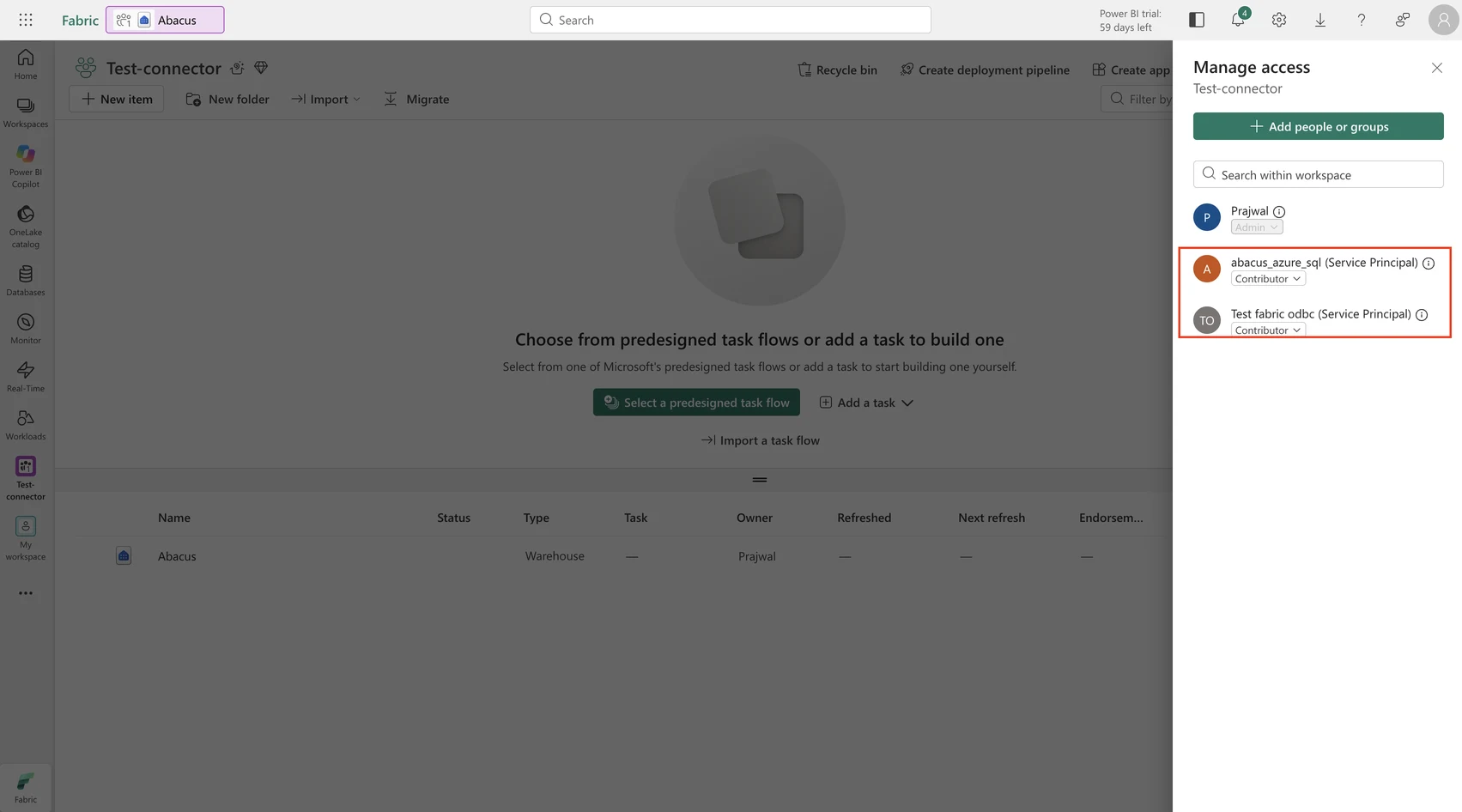
- Open the Fabric workspace, click Manage access → Add people or groups and add both of the following with the Contributor role:
- Your app registration.
abacus_azure_sql, the Abacus.AI Microsoft Entra application.
- Give each end user, or a Microsoft Entra group they belong to, access to the Warehouse. Choose one of the following:
- Share the Warehouse (More options (...) → Share on the item) with Read permission only, then grant access to specific tables or schemas in T-SQL, for example
GRANT SELECT ON SCHEMA::sales TO [user@contoso.com];. Use this to control exactly what each user can query. - Share the Warehouse with Read all data using SQL ticked, to let users read every table and view.
- Add them to the workspace with the Viewer role, which can also read every table and view.
- Share the Warehouse (More options (...) → Share on the item) with Read permission only, then grant access to specific tables or schemas in T-SQL, for example
Users need their own access to the Warehouse: Abacus.AI runs their queries under their identity, not the service principal's. Workspace Admin, Member and Contributor roles grant full control of the Warehouse, so avoid them for end users whose access you want to restrict. Row-level security policies still apply to every role.
Step 2 — Create the Microsoft Fabric connector with RBAC import
- Click your profile picture, select Manage Connectors, click Add New Connector and choose ODBC/JDBC.

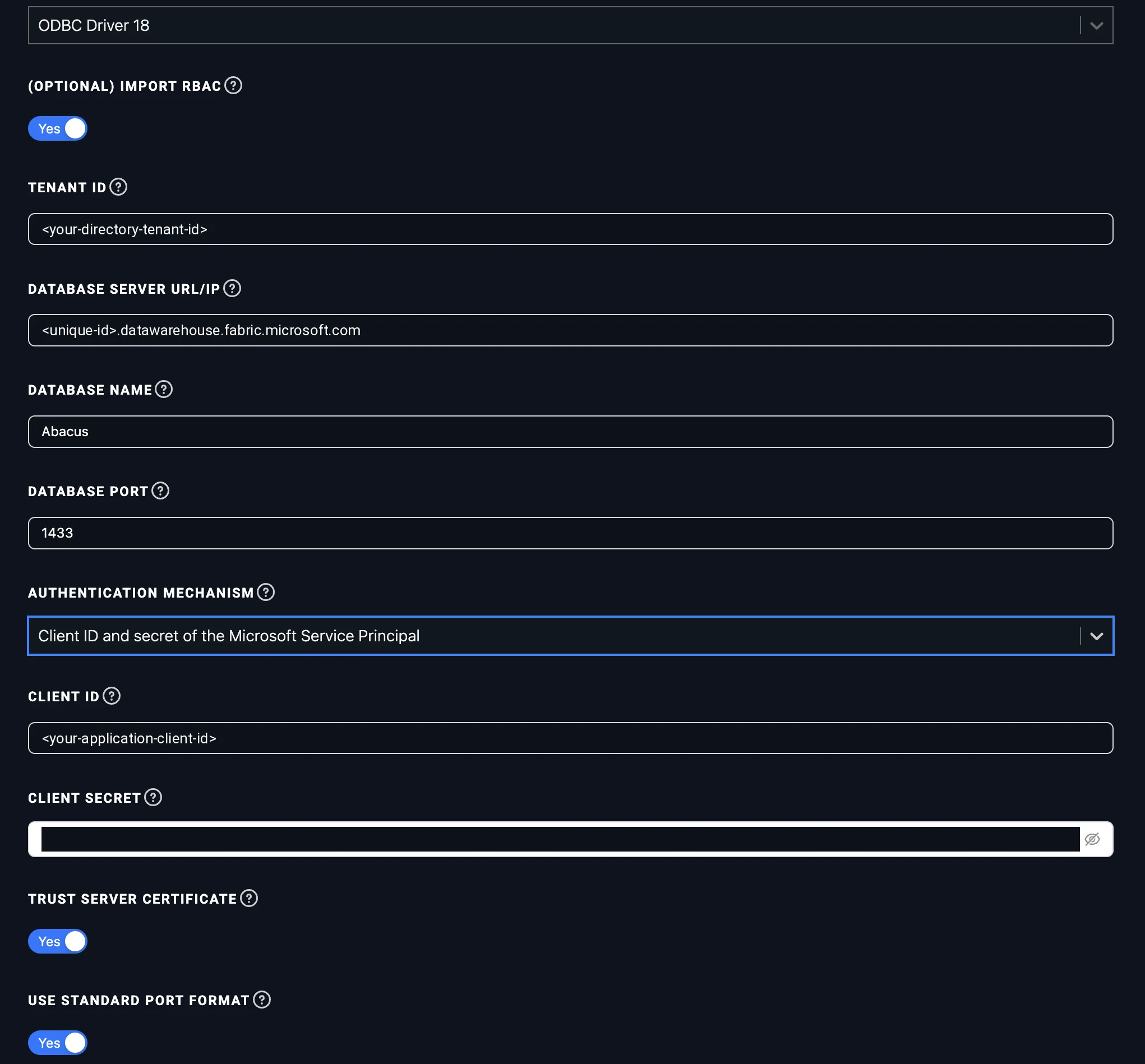
- Select the ODBC Driver 18 driver and turn the IMPORT RBAC toggle on. Enter the Directory (tenant) ID of your Microsoft Entra tenant in the Tenant ID field that appears.
Enable the IMPORT RBAC toggle. Without it, every user queries the Warehouse as the service principal and might gain access to more data than expected.
- Fill in the connection details and click CREATE:
- Database Server URL/IP: the Warehouse's SQL connection string (
<unique-id>.datawarehouse.fabric.microsoft.com). - Database Name: the Warehouse (or Lakehouse) name.
- Database Port:
1433. - Authentication Mechanism:
Client ID and secret of the Microsoft Service Principal. - Client ID and Client Secret: the app registration's Application (client) ID and secret value.
- Trust Server Certificate:
Yes. - Use standard port format:
Yes.
- Database Server URL/IP: the Warehouse's SQL connection string (
- Click Verify Now and make sure the connector is in the active state.
Step 3 — Build a Custom Chatbot on the connector
Follow Use a database connector in a Custom Chatbot: create a Custom Chatbot project, train the model with Structured data source → External Databases, select the Microsoft Fabric connector from Step 2 and add the tables to use, then deploy and test it.
Step 4 — End-user sign-in
When a user enters their first question, they are asked to log in once with their Microsoft Entra ID credentials. The chatbot then answers using only the data that user's Fabric permissions allow.
Important notes
- The ODBC 18 driver is required.
- The connector must be in the active state before you train a model on it.
- Each end user needs their own access to the Warehouse in Fabric (Step 1).
Troubleshooting
- Verify that the Microsoft Fabric connector is configured with IMPORT RBAC on and is active.
- Check that the app registration and
abacus_azure_sqlboth have the Contributor role on the workspace. - If a user cannot see a table, check their access to the Warehouse in Fabric and their T-SQL permissions on it.
- Confirm that Microsoft Entra ID sign-in works for the user, and that the tenant consent step has been completed.